CPU vs GPU Bottleneck: How to Identify and Fix Performance Issues
Last updated:
March 29, 2026
Have you ever wondered why your expensive gaming PC does not deliver the frame rates you expected? The answer is often a bottleneck. In simple terms, a bottleneck happens when one component in your system limits the performance of another. Think of it like a highway: if one lane narrows, traffic slows down even if the rest of the road is wide open. In 2026, with games becoming more demanding than ever, understanding and fixing bottlenecks is essential for getting the most out of your hardware.
Whether you are facing a CPU bottleneck where your processor struggles to keep up, or a GPU bottleneck where your graphics card is maxed out, this guide will help you diagnose the problem and take action. We will cover real world examples, step by step testing methods, and practical fixes ranging from simple setting tweaks to strategic upgrades. By the end, you will know exactly how to balance your system for smooth, stutter free gaming and better overall PC performance.
Before upgrading anything, you should identify which component is actually holding you back. Many gamers waste money on the wrong part because they guess instead of testing. Use our Bottleneck Calculator to analyze your specific CPU and GPU combination. It gives you a clear percentage breakdown and helps you make smart purchasing decisions.
What is a CPU Bottleneck? Signs and Impact
A CPU bottleneck occurs when your processor cannot feed data fast enough to your graphics card. In this situation, the CPU runs at or near 100% usage while the GPU sits idle, waiting for instructions. This imbalance creates frustrating performance issues like stuttering, inconsistent frame rates, and input lag, even if your graphics card is powerful enough to render higher quality visuals.
How does a CPU bottleneck affect your gaming experience? You will notice frame rate drops during complex scenes with many characters, explosions, or physics calculations. Games like Cyberpunk 2077, Starfield, and large multiplayer battles in Call of Duty or Battlefield often expose CPU limits. Your FPS might stay high in empty areas but crash when action heats up. This inconsistency makes gameplay feel choppy and unresponsive.
CPU bottlenecks are more common at lower resolutions like 1080p, where the GPU processes frames quickly and the CPU struggles to keep up. They also appear in simulation heavy games, strategy titles like Civilization, and any software that relies heavily on single core performance. In productivity tasks, a CPU bottleneck shows as slow video rendering, laggy multitasking, and long compile times.
Understanding GPU Bottleneck: When Your Graphics Card is Maxed Out
A GPU bottleneck is the opposite scenario: your graphics card works at 100% capacity while your CPU has headroom to spare. Unlike CPU bottlenecks, this situation actually delivers a smoother experience. Frame rates will be lower, but they remain consistent without the stuttering and frame time spikes associated with processor limits.
How can you identify a GPU bottleneck? Open a monitoring tool like MSI Afterburner or Task Manager while gaming. If your GPU usage stays at 95-100% and CPU usage is below 90%, you have a classic GPU bottleneck. This is the most common scenario for gamers playing at 1440p or 4K with high or ultra settings. Modern titles with ray tracing and high resolution textures almost always become GPU limited first.
A GPU bottleneck is generally considered the better situation for gaming because it provides predictable performance. You can simply lower graphics settings or resolution to gain more FPS. In contrast, a CPU bottleneck often requires expensive hardware upgrades to fix. For most gamers, a mild GPU bottleneck means you have a well balanced system where your graphics card is the star player.
CPU Bottleneck vs GPU Bottleneck: Key Differences
Understanding the differences helps you diagnose issues faster. Here is a practical comparison with real world examples across different resolutions and hardware combinations.
| Factor | CPU Bottleneck | GPU Bottleneck |
|---|---|---|
| Usage Pattern | CPU near 100%, GPU below 90% | GPU at 95-100%, CPU lower |
| Frame Rate Behavior | Stuttering, inconsistent FPS drops | Consistent but lower FPS |
| Resolution Impact | Worse at 1080p, improves at 4K | Worse at 4K, improves at 1080p |
| Example Combo | Core i3 + RTX 4090 at 1080p | Ryzen 9 + GTX 1650 at 4K |
| Fix Difficulty | Harder, often needs CPU upgrade | Easier, lower settings or better GPU |
Real world example: Pairing an Intel Core i3 13100F with an RTX 4080 at 1080p creates a severe CPU bottleneck. The processor cannot prepare frames fast enough, so the GPU sits at 60% usage while the CPU maxes out. Stuttering is common. But at 4K, the same combo becomes GPU limited because the RTX 4080 works hard to push all those pixels. The experience becomes smoother, though frame rates are lower. This is why resolution plays a massive role in bottleneck in gaming scenarios.
How to Identify a Bottleneck: Step by Step Guide
You do not need expensive tools to diagnose PC performance issues. Follow these steps to determine whether you have a CPU bottleneck or GPU bottleneck.
Step 1: Download Monitoring Software
Use MSI Afterburner with RivaTuner, HWMonitor, or even the built in Windows Task Manager. These tools show real time CPU and GPU usage percentages.
Step 2: Run a Demanding Game or Benchmark
Play your most demanding game for 15-20 minutes. Make sure to include scenes with heavy action, explosions, or many NPCs. Record the usage numbers.
Step 3: Analyze the Usage Patterns
If GPU usage is consistently below 90% while CPU usage is at or near 100% on any core, you have a CPU bottleneck. If GPU usage stays at 95-100% and CPU usage is below 90%, you have a GPU bottleneck.
Step 4: Check Per Core CPU Usage
A single core at 100% while others are idle still indicates a CPU bottleneck. Many games cannot use all cores effectively, so look for any core maxing out.
Step 5: Test Different Resolutions and Settings
Lower your resolution to 720p or 1080p and reduce graphics settings. If frame rates do not improve much, you likely have a CPU bottleneck. If FPS jumps significantly, your GPU was the limit.
For a quick automated analysis, you can always check your specific hardware combination using the Bottleneck Calculator. It provides an instant estimate of CPU vs GPU performance balance and suggests upgrades if needed.
Common CPU and GPU Bottleneck Situations
Below are some common CPU and GPU utilization scenarios. Understanding these usage patterns can help you determine whether your system is experiencing a hardware bottleneck or if a specific game or application relies more on the CPU or the GPU.
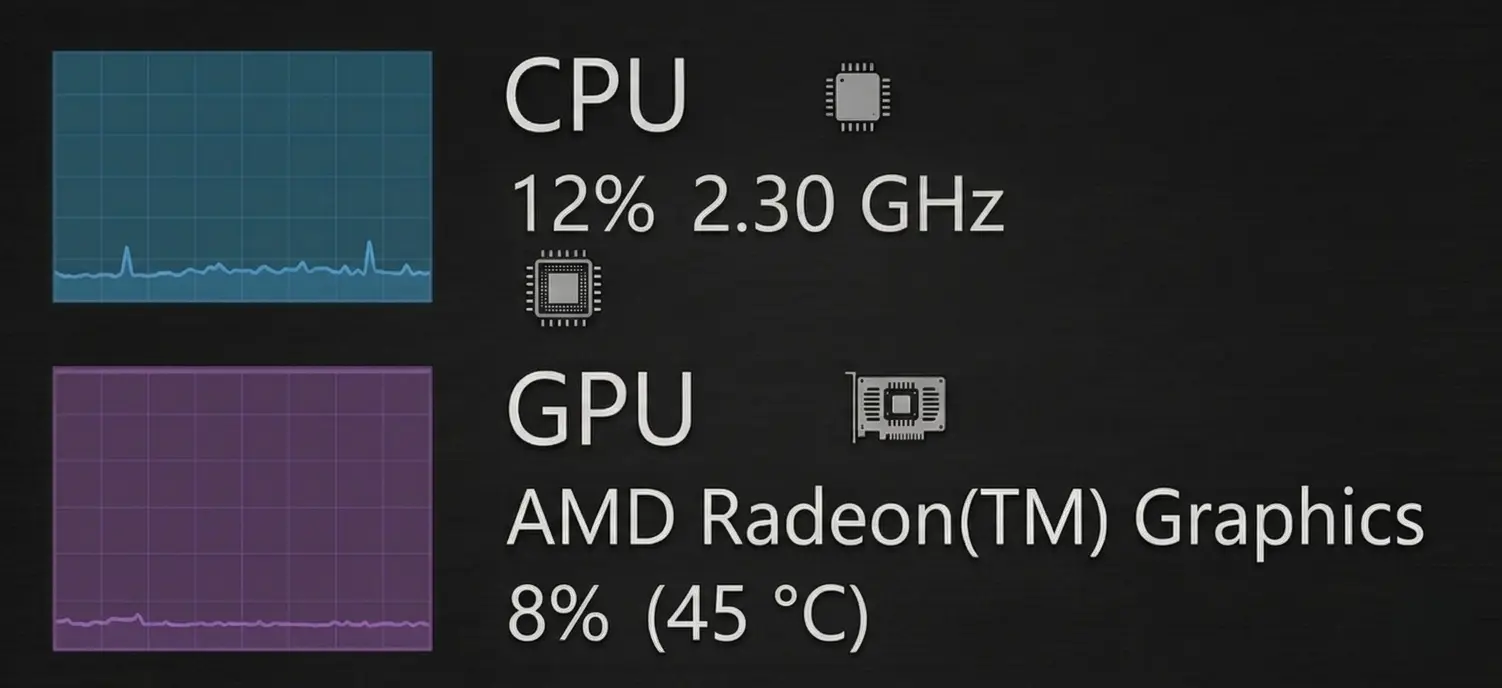
Low CPU usage and Low GPU usage:
When both the CPU and GPU show low activity, the workload is very light. This usually happens in simple games, older titles, or when graphics settings are very low.
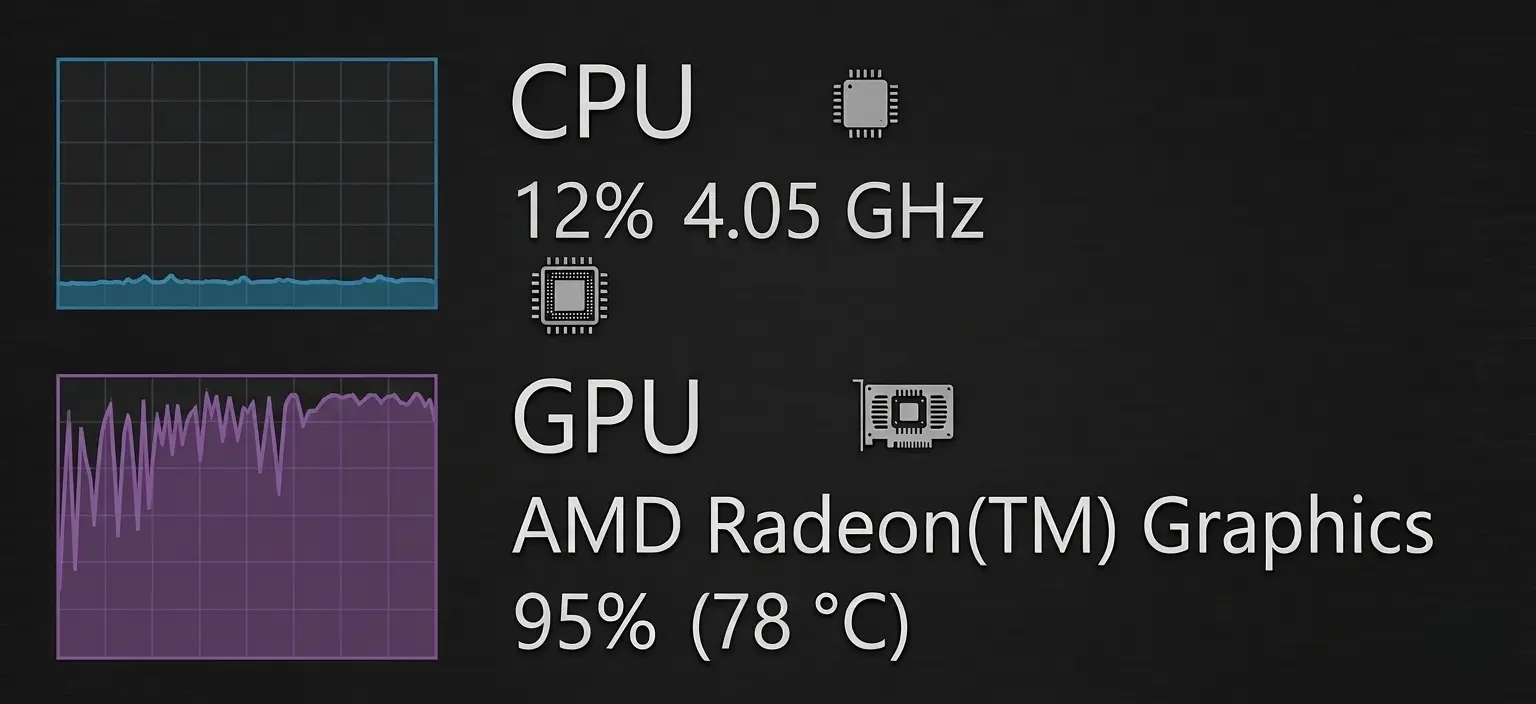
Low CPU usage and Maximum GPU usage:
This normally occurs in visually demanding games or when playing at higher resolutions. If frame rates are not high enough, the graphics card is likely the component limiting performance.
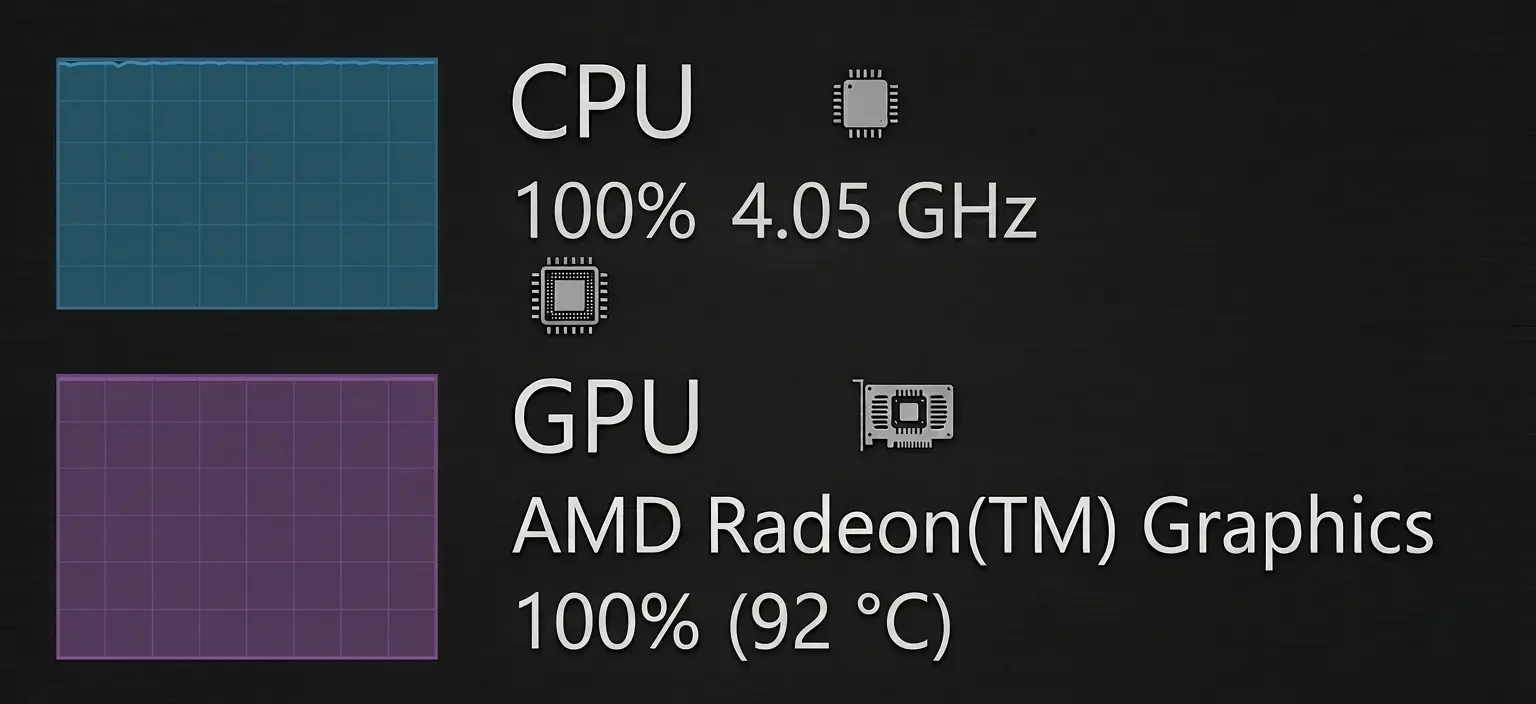
High CPU usage and Maximum GPU usage:
This usually means the game or application is demanding on both processing and graphics power. The system is fairly balanced, although the GPU may be slightly closer to its performance limits.
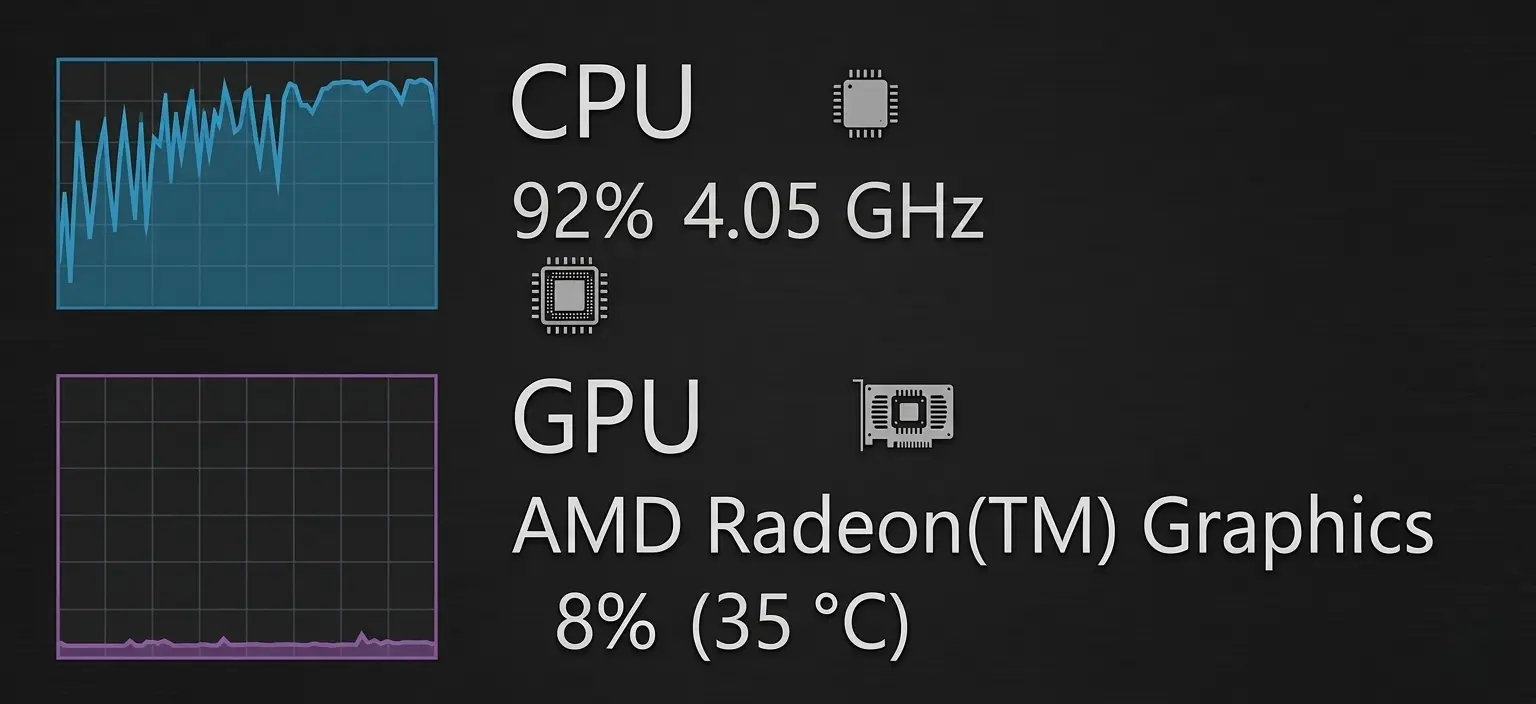
Maximum CPU usage and Low GPU usage:
Here the processor is fully loaded while the graphics card remains underused. This is a classic sign of a CPU bottleneck. The processor cannot send tasks to the GPU quickly enough, which limits overall performance. Upgrading the CPU or reducing CPU-heavy settings may help improve results.
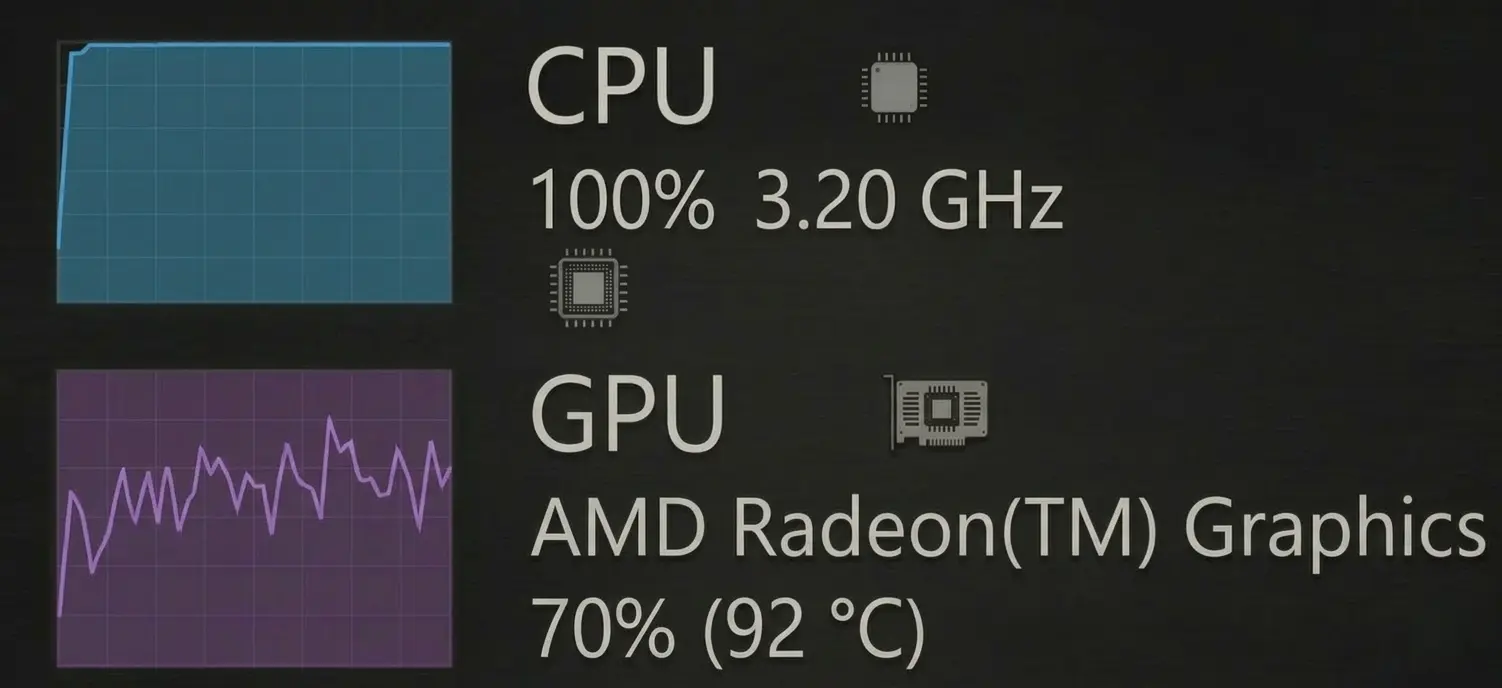
Maximum CPU usage and High GPU usage:
Both the processor and graphics card are working hard in this scenario, but the CPU is reaching its maximum limit. The system is close to balanced, although the processor may slightly restrict performance in certain situations or games.
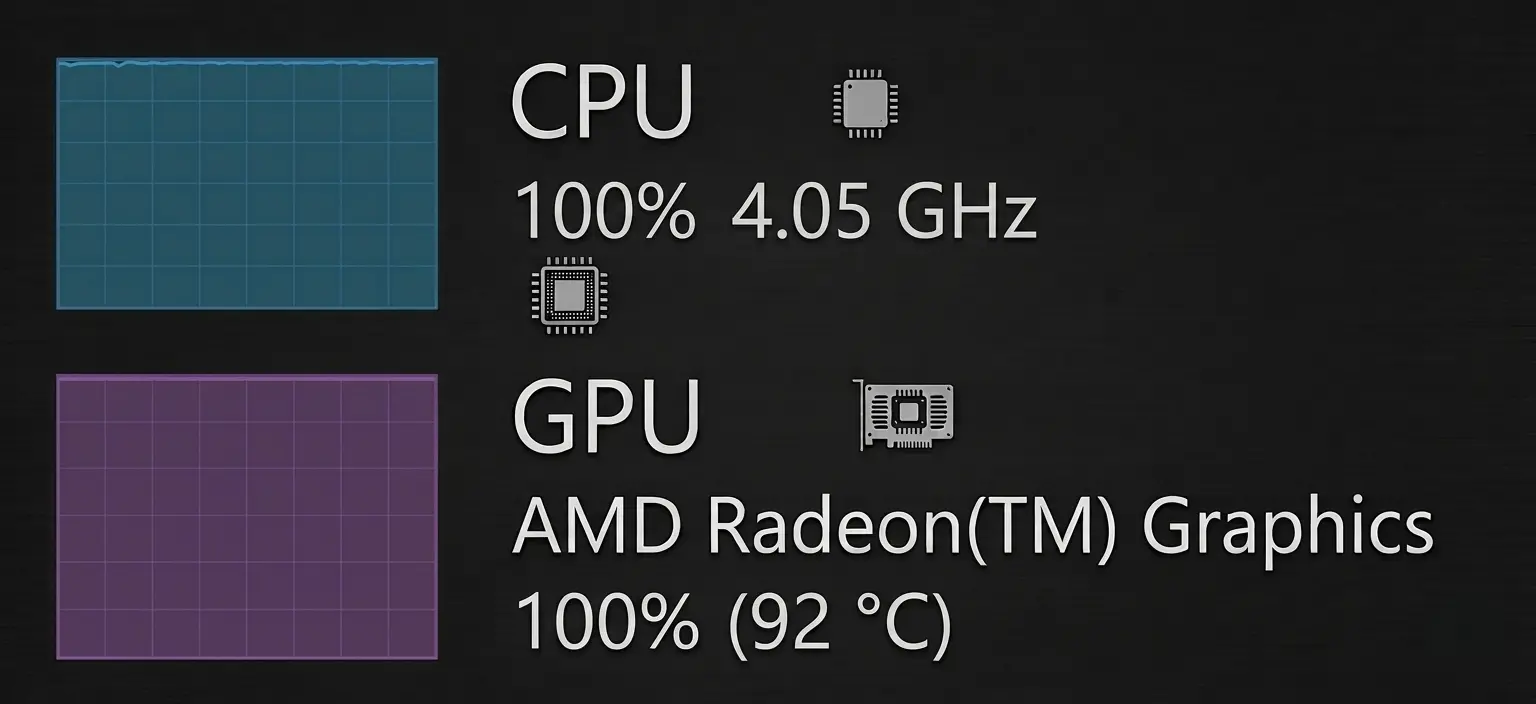
Maximum CPU usage and Maximum GPU usage:
When both the CPU and GPU reach full utilization, your system is being pushed to its limits. This is common in extremely demanding games or heavy workloads.
How to Prevent Bottlenecks When Building or Upgrading Your PC
Following best practices when building or upgrading a PC helps minimize bottlenecks and ensures your system performs optimally. Proper component selection, balanced system design, and careful planning are key to achieving consistent performance.
Component Selection and CPU-GPU Balance
Choosing compatible CPU and GPU combinations prevents bottlenecks and maximizes frame rates. Consider core count, clock speed, and GPU power relative to your use case. Dual-channel RAM and VRM design also impact performance and stability.
Memory and Storage Optimization
Use sufficient RAM with low latency and dual-channel configurations to avoid memory bottlenecks. High-speed storage such as NVMe SSDs ensures data streams efficiently and prevents storage from creating artificial CPU or GPU limitations.
Cooling and Case Design
Proper airflow, CPU coolers, and quality thermal paste prevent thermal throttling. Ensuring the CPU and GPU maintain optimal temperatures keeps component utilization stable and bottleneck calculator results accurate.
Power and PCIe Considerations
A stable power supply with adequate wattage prevents CPU and GPU from reducing performance under load. Ensure PCIe Gen 4 or 5 support to maintain high bandwidth between components, avoiding potential bottlenecks.
Using Analysis Tools and Upgrade Planning
Hardware bottleneck analysis tools, performance analysis, and upgrade recommendations help identify weak points before they impact performance. Planning upgrades using these tools ensures your system remains balanced and optimized over time.
Optimization Tips
Regularly update drivers, maintain proper cooling, and monitor system utilization. Following best practices in component selection, case airflow, and upgrade paths ensures your system runs efficiently, with minimal bottlenecks affecting gaming, content creation, or general use.
Research Before You Buy
Look up benchmarks for your specific game genres. Some games favor Intel, others AMD. Some need strong single core performance, others benefit from many cores. Use the Bottleneck Calculator to test potential combinations before spending money.
Final Thoughts
Bottlenecks are not the enemy; they are simply a reality of PC hardware. Every system has a limiting factor. The goal is to understand which component is limiting you and ensure it aligns with your performance expectations. A mild GPU bottleneck is perfectly acceptable and often indicates a well matched system. A severe CPU bottleneck, however, can ruin the gaming experience with stuttering and inconsistency.
Armed with the step by step identification methods and practical fixes in this guide, you can now diagnose and resolve PC performance issues with confidence. Start with the free solutions like adjusting settings and closing background apps. Move to overclocking if you have thermal headroom. Only upgrade hardware when necessary, and always verify that the new component will balance well with your existing parts.
Remember, the best gaming experience comes from harmony between your CPU and GPU. Take the time to monitor your system, understand its behavior, and make informed decisions. Your wallet and your gaming sessions will thank you.
Frequently Asked Questions
What is a CPU bottleneck and how do I know if I have one?+
A CPU bottleneck happens when your processor cannot keep up with your graphics card, limiting performance. You will notice the CPU usage near 100% while GPU usage stays low, often below 90%. Common signs include stuttering, inconsistent frame rates, and lag in CPU heavy games like strategy titles or large multiplayer battles.
Can a GPU bottleneck damage my PC components?+
No, a GPU bottleneck is completely safe and actually means your graphics card is working at full capacity. It simply indicates your GPU is the limiting factor for performance. Unlike CPU bottlenecks which can sometimes cause stuttering, a GPU bottleneck typically results in smoother but lower frame rates. It is a normal condition in many gaming PCs.
Is it better to have a CPU bottleneck or a GPU bottleneck?+
Generally, a GPU bottleneck is preferable because it delivers smoother, more consistent frame times. When your GPU is the limit, you simply get lower FPS without the stuttering and frame pacing issues common with CPU bottlenecks. However, the ideal scenario is a balanced system where both components are well matched for your target resolution and refresh rate.
Can upgrading my monitor resolution fix a CPU bottleneck?+
Yes, increasing resolution can actually help reduce a CPU bottleneck. When you move from 1080p to 1440p or 4K, the GPU works much harder, which shifts the bottleneck away from the CPU. Your frame rate might drop, but the stuttering caused by CPU limits often disappears because the GPU becomes the limiting factor. This is a clever way to balance an overpowered CPU with a capable GPU.