How to Test GPU Health and Performance
Last updated:
Dec 15, 2025
Your graphics card is the heart of your gaming experience, transforming complex calculations into breathtaking visuals. But like any hardworking component, it needs regular checkups to stay in top shape. Learning how to test GPU health isn't just for troubleshooting, it's preventive maintenance that can extend your card's life and ensure you're getting the performance you paid for. Whether you're noticing strange glitches in your favorite games or just want peace of mind, understanding your GPU's condition is easier than you might think.
Many gamers wait until something goes wrong before checking their graphics card, but that's like only visiting the doctor when you're already sick. Regular GPU health checks can catch small issues before they become big problems, saving you money and frustration. The good news? You don't need to be a tech expert to perform basic diagnostics. With free tools and simple steps, anyone can learn how to see if their GPU is working properly and identify potential issues early.
In this comprehensive guide, we'll walk through everything from basic checks anyone can do in five minutes to more advanced testing for enthusiasts. You'll learn how to check what GPU you have, monitor its vital signs, run stress tests safely, and interpret the results. By the end, you'll have the confidence to assess your graphics card's health and take action if something needs attention. Let's dive into the world of GPU diagnostics and ensure your gaming rig stays healthy for years to come.
Why Regular GPU Health Checks Matter
Think of your GPU as the athlete of your computer, it works hard, generates heat, and pushes its limits every time you game. Just as athletes need regular checkups, your graphics card benefits from periodic health assessments. Regular GPU health checks help you catch issues like overheating, dust buildup, or failing components before they cause permanent damage or complete failure. These simple preventive measures can add years to your GPU's lifespan.
Beyond preventing disasters, regular testing helps you optimize performance. You might discover that your GPU is thermal throttling (slowing down to avoid overheating), which means a simple cleaning or better case airflow could restore lost performance. Or you might find that your card is performing below expectations, prompting a driver update or settings adjustment. When you know how to test GPU performance regularly, you ensure you're getting every frame per second you paid for.
Many gamers overlook GPU health until they experience crashes, artifacts, or performance drops. By then, damage might already be occurring. Establishing a routine say, every three months—takes little time but provides valuable insights into your hardware's condition. This proactive approach is especially important if you game frequently, overclock your components, or live in warm climates where cooling systems work harder.
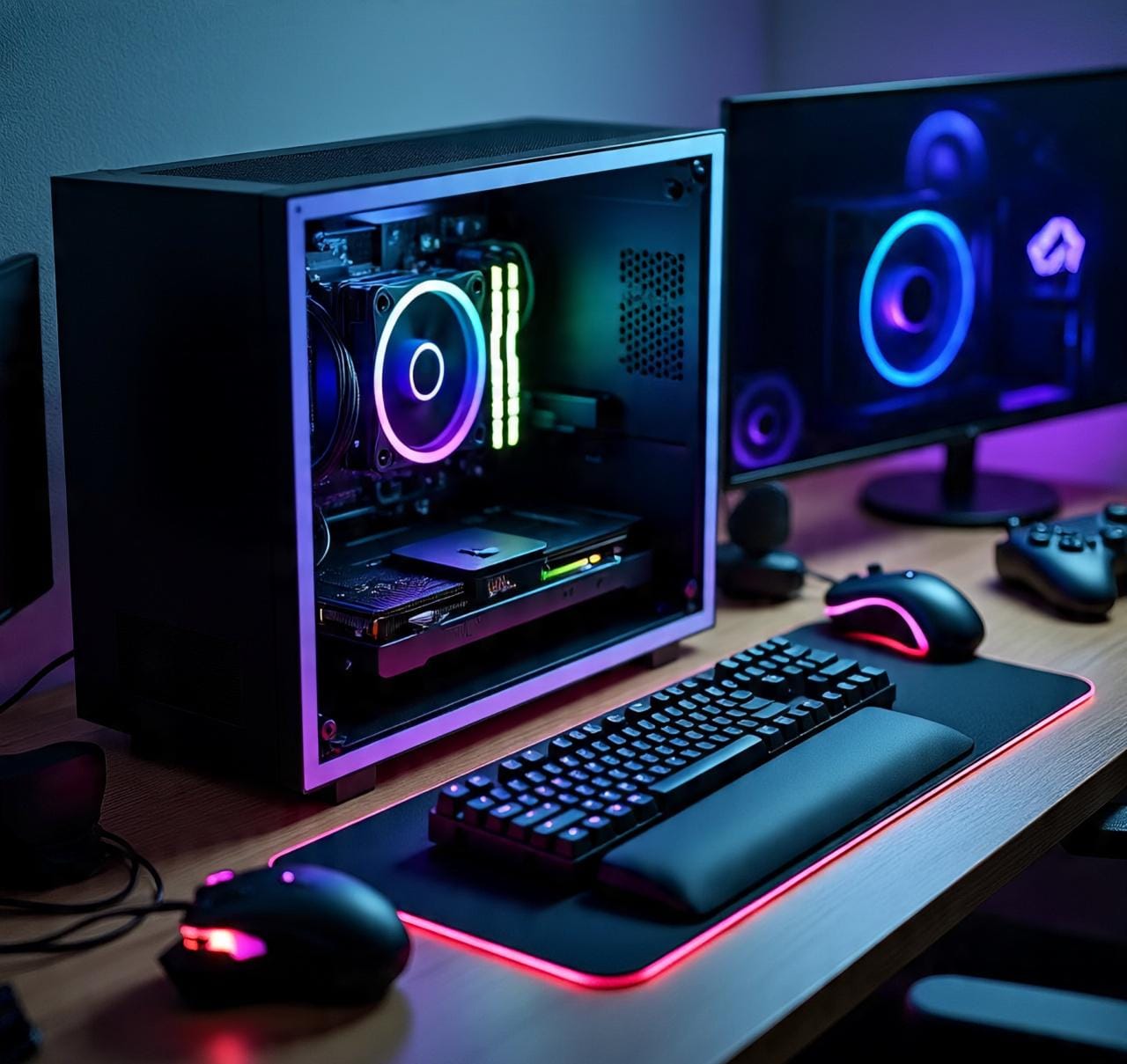
Step-by-Step Guide: How to Test Your GPU Health
Follow this systematic approach to thoroughly test your graphics card health. We'll start with the basics and move to more advanced checks. Each step builds on the previous one, giving you a complete picture of your GPU's condition.
Identify Your GPU
First, learn what graphics card you have. This helps you understand what performance to expect and find appropriate benchmarks for comparison.
Recommended Tools:
Pro Tip: Take a screenshot of your GPU details for future reference when troubleshooting or comparing performance.
Monitor Temperatures
Check your GPU temperatures at idle and under load. High temperatures can indicate cooling problems that affect performance and longevity.
Recommended Tools:
Pro Tip: Create a temperature log over several days to identify patterns or gradual increases that might indicate dust buildup.
Run Stress Tests
Stress testing pushes your GPU to its limits, revealing stability issues, thermal problems, or potential failures before they affect your gaming.
Recommended Tools:
Pro Tip: Never leave stress tests unattended for long periods. Monitor temperatures closely and stop if they exceed 90°C.
Check Visual Stability
Look for visual artifacts like colored dots, lines, or texture corruption during testing. These often indicate memory problems or overheating.
Recommended Tools:
Pro Tip: Artifacts often appear in specific conditions, test different games and applications to identify patterns.
Benchmark Performance
Compare your GPU's performance against similar systems. This helps identify if your card is performing as expected or if there are underlying issues.
Recommended Tools:
Pro Tip: Run benchmarks multiple times and average the results for more accurate comparison, as background processes can affect scores.
Driver and System Check
Ensure you have updated drivers and that your system isn't limiting GPU performance through power settings or background processes.
Recommended Tools:
Pro Tip: Use Display Driver Uninstaller (DDU) for clean driver installations if you suspect software issues are affecting performance.
Red Flags: When Your GPU Needs Attention
Some issues require immediate attention. If you notice any of these warning signs during your GPU health test, it's time to investigate further or consider professional help.
Games crash to desktop without error messages
Visual artifacts (colored dots, lines, texture corruption)
Screen flickering or black screens during use
Temperatures consistently above 85°C during gaming
Significant performance drops in familiar games
Loud fan noises or fans not spinning
Driver installation fails or crashes frequently
Blue screens mentioning graphics drivers
What to Do If You Find Problems:
- Don't panic: Many GPU issues have simple solutions
- Clean your GPU: Dust buildup causes 40% of overheating issues
- Update drivers: Use DDU for clean installation if needed
- Check power supply: Insufficient power causes instability
- Monitor temperatures: Use software to track heat patterns
- Test in another system: If possible, isolate the GPU
- Contact support: Use warranty if hardware is failing
Essential Software for GPU Health Testing
GPU-Z: Your Diagnostic Dashboard
GPU-Z is the Swiss Army knife of GPU diagnostics. This lightweight, free tool provides detailed information about your graphics card—exact model, memory type, BIOS version, and real-time sensor data. The Sensors tab shows temperatures, clock speeds, fan speeds, and power draw updating in real time. For your GPU health test, pay special attention to temperature trends and clock speed stability under load.
MSI Afterburner: Monitoring and More
While known for overclocking, MSI Afterburner's monitoring capabilities make it perfect for GPU health checks. It displays real-time statistics in an on-screen overlay during games, letting you see how your GPU behaves under actual gaming conditions. You can monitor temperatures, usage percentages, clock speeds, and frame rates simultaneously. The logging feature creates records you can review later to identify patterns or issues.
FurMark: The Stress Test Specialist
When you need to test GPU health under extreme conditions, FurMark delivers. This free program pushes your graphics card to its thermal and power limits, revealing stability issues that might not appear during normal gaming. Run FurMark for 20-30 minutes while monitoring temperatures—this "torture test" helps identify cooling problems, power delivery issues, or memory faults. Use it cautiously and never leave it running unattended for extended periods.
3DMark: Professional Benchmarking
For comprehensive GPU performance testing, 3DMark is industry standard. While the full version costs money, the free demo includes Time Spy (DirectX 12) and Fire Strike (DirectX 11) benchmarks. After running tests, you get a score you can compare with identical systems online. The stress test feature specifically designed for GPU health checks runs the same test 20 times to check for performance degradation or instability under sustained load.
Temperature Management: The Key to GPU Longevity
Heat is the number one enemy of electronic components, and your GPU generates plenty of it. Understanding and managing temperatures is crucial for maintaining GPU health. Here's what you need to know about thermal management during your GPU health test.
Safe Zone
30-75°C
Ideal operating range for most gaming scenarios. Your GPU is happy and performing optimally here.
Warning Zone
76-85°C
Your GPU may throttle performance. Check cooling, clean dust, improve airflow.
Danger Zone
86°C+
Immediate action needed. Risk of thermal damage. Stop stress tests and investigate cooling.
Improving GPU Cooling
If your GPU health test reveals high temperatures, don't worry—most thermal issues have simple solutions. Start by cleaning dust from heatsinks and fans using compressed air. Ensure your case has adequate airflow with proper intake and exhaust fan configuration. Consider adjusting fan curves in software like MSI Afterburner for more aggressive cooling. For advanced users, replacing thermal paste (every 2-3 years) can significantly lower temperatures on older cards.
Seasonal Considerations
Room temperature affects GPU temperatures directly. Expect 5-10°C higher temperatures in summer versus winter. During hot months, you might need to clean your PC more frequently or adjust fan curves. If you live in particularly warm climates, consider additional case fans or even air conditioning in your gaming space. Regular GPU health checks help you adapt to seasonal changes and maintain optimal performance year-round.
Beyond DIY: When to Get Professional Help
While most GPU issues can be resolved with basic troubleshooting, some situations warrant professional attention. Knowing when to seek help can save you from causing further damage or voiding warranties.
Physical Damage Signs
Burned components, melted plastic, swollen capacitors, or visible damage to the circuit board require professional assessment. Attempting to repair physical damage yourself often causes more harm.
Persistent Issues After Troubleshooting
If you've cleaned your GPU, updated drivers, tested in another system, and problems persist, there may be deeper hardware issues requiring specialized diagnostic equipment.
Warranty Considerations
If your GPU is still under warranty, contact the manufacturer before attempting any repairs. Opening the cooler or replacing thermal paste often voids warranties, so let professionals handle covered repairs.
Remember: Your safety comes first. Never work on electronic components while they're powered on, and discharge static electricity before handling sensitive parts. If you're uncomfortable with any step of the GPU health test process, there's no shame in seeking professional help—especially with expensive components like modern graphics cards.
Creating Your GPU Maintenance Schedule
Consistency is key to maintaining GPU health. Rather than waiting for problems, establish a regular maintenance routine. Here's a suggested schedule based on your usage patterns.
| Activity | Casual Gamer | Daily Gamer | Enthusiast/Overclocker |
|---|---|---|---|
| Quick GPU health check | Every 6 months | Every 3 months | Monthly |
| Full stress test | Yearly | Every 6 months | Quarterly |
| Physical cleaning | Yearly | Every 6-9 months | Every 3-6 months |
| Driver updates | When issues occur | Monthly check | With each new release |
| Temperature logging | During problems | Seasonal changes | Continuous monitoring |
Adjust this schedule based on your specific environment and usage. If you have pets that shed, you might need more frequent cleaning. If you live in a dusty area, increase cleaning frequency. The goal isn't to create extra work but to prevent bigger problems down the road. A few minutes of preventive maintenance can save hours of troubleshooting later.
Your GPU Health Journey Starts Today
Learning how to test GPU health is one of the most valuable skills you can develop as a PC owner. It transforms you from someone who reacts to problems into someone who prevents them. The tools are free, the process is straightforward, and the benefits are substantial—longer component life, better performance, and fewer frustrating gaming sessions interrupted by technical issues.
Start with the basics: identify your GPU, monitor its temperatures during your next gaming session, and run a quick stress test. You don't need to become an expert overnight. Build your knowledge gradually, adding new tests and tools as you become comfortable. Remember that consistency matters more than complexity—regular simple checks are more valuable than occasional deep dives.
Your graphics card represents a significant investment in your gaming experience. Treat it with the care it deserves, and it will reward you with years of reliable performance. Whether you're running a budget GPU or a flagship model, the principles of good GPU health maintenance remain the same: monitor, clean, test, and optimize. The peace of mind that comes from knowing your hardware is healthy? That's priceless. Happy gaming, and may your frame rates be high and your temperatures low.
Frequently Asked Questions About GPU Health
How can I test GPU health on my computer?+
You can test GPU health by using built-in Windows tools, third-party software like GPU-Z or MSI Afterburner, or by running stress tests with programs like FurMark. Start by checking your GPU temperature under load—it should stay below 85°C. Monitor for artifacts (visual glitches), crashes, or performance drops during gaming, which indicate potential GPU issues.
What's the best way to perform a GPU health check?+
The most thorough GPU health check involves multiple steps: First, check your system information to see what GPU you have. Then monitor temperatures during idle and gaming. Run a stress test for 20-30 minutes to check stability. Finally, benchmark your GPU and compare results online. Tools like 3DMark provide comprehensive testing with scoring systems that help you understand if your GPU is performing as expected.
How do I see if my GPU is working properly?+
To see if your GPU is working properly, check these signs: Games run smoothly without stuttering or crashing, temperatures remain stable under load, there are no visual artifacts (colored dots, lines, or texture corruption), and fans spin up when needed. Also verify in Device Manager that your GPU shows up without warning symbols and that drivers install without errors.
How to check what GPU I have on Windows?+
On Windows 10 or 11, press Windows + X and select Device Manager, then expand Display Adapters. Alternatively, press Windows + R, type 'dxdiag' and check the Display tab. For a quicker method, right-click your desktop and select Display Settings > Advanced Display > Display Adapter Properties. You can also use Task Manager (Ctrl+Shift+Esc) and check the Performance tab for GPU details.
What software can I use to test my GPU health?+
Several excellent free programs help test GPU health: GPU-Z for detailed specifications and sensors, MSI Afterburner for monitoring and overclocking, FurMark for stress testing, 3DMark for benchmarking, and Heaven Benchmark for visual stability testing. NVIDIA users can use GeForce Experience, while AMD users have Radeon Software with built-in monitoring and testing tools.
How often should I check GPU health?+
For normal use, check GPU health every 3-6 months. If you game daily, consider monthly checks. Always test after: installing new drivers, cleaning your PC, experiencing game crashes, or noticing performance drops. Summer months or when room temperatures rise warrant extra checks since heat affects GPU longevity. Regular monitoring helps catch issues early before they become serious problems.
What temperature is safe during GPU health tests?+
During GPU health tests, safe temperatures vary by model but generally: 30-40°C at idle, 60-75°C under gaming load, and up to 85°C during stress tests. Modern GPUs throttle performance above 83°C to prevent damage. If your GPU consistently exceeds 80°C during normal gaming, consider improving case airflow, cleaning dust from heatsinks, or reapplying thermal paste.
Can I test GPU health without dedicated software?+
Yes, you can perform basic GPU health tests without dedicated software. Play demanding games and monitor for crashes or visual issues. Check Windows Event Viewer for GPU-related errors. Use Task Manager to monitor GPU utilization—it should increase during games. Built-in Windows tools like dxdiag provide basic information, and you can visually inspect your GPU for physical damage or excessive dust buildup.
What symptoms indicate failing GPU health?+
Common symptoms of failing GPU health include: frequent game crashes or blue screens, visual artifacts (colored dots, lines, texture corruption), overheating (temperatures above 85°C), screen flickering or black screens, fan noise or failure, performance drops despite normal settings, and driver installation failures. If you experience multiple symptoms, your GPU likely needs attention or replacement.
How to test GPU performance after health checks?+
After basic health checks, test GPU performance with benchmarking software. Run 3DMark Time Spy for DirectX 12 performance, Unigine Heaven for stability, or specific game benchmarks. Compare your scores with similar systems online. Monitor frame rates in your favorite games using tools like FRAPS or built-in game benchmarks. Performance testing helps identify if your GPU is delivering expected frame rates for its specifications.