How to Optimize Gaming PC for Competitive FPS
Last updated:
Mar 11, 2026
Learning how to optimize gaming PC for competitive FPS transforms your gameplay from average to exceptional. Every frame matters when milliseconds determine victory. This comprehensive guide delivers the exact optimizations professional esports players use to squeeze maximum performance from their systems. We focus exclusively on competitive first person shooter performance, not general gaming aesthetics.
Competitive optimization differs dramatically from casual gaming tuning. We prioritize raw frame rate, consistent frame delivery, and minimal input delay above all else. Visual quality becomes secondary to performance. This guide covers everything from Windows level tweaks to game specific settings that pro players actually use in tournaments. Each recommendation comes from testing across multiple competitive titles.
Before applying these optimizations, it helps to measure your current performance using our FPS calculator, which estimates expected frame rates based on your CPU, GPU, and resolution.
Whether you compete in Valorant ranked matches, CS2 faceit pugs, or Warzone tournaments, these optimizations deliver tangible improvements. We provide clear, actionable steps without technical jargon. Follow this guide in order, track your FPS improvements at each stage, and transform your gaming PC into a competitive weapon. Your opponents use these optimizations, now you will too.
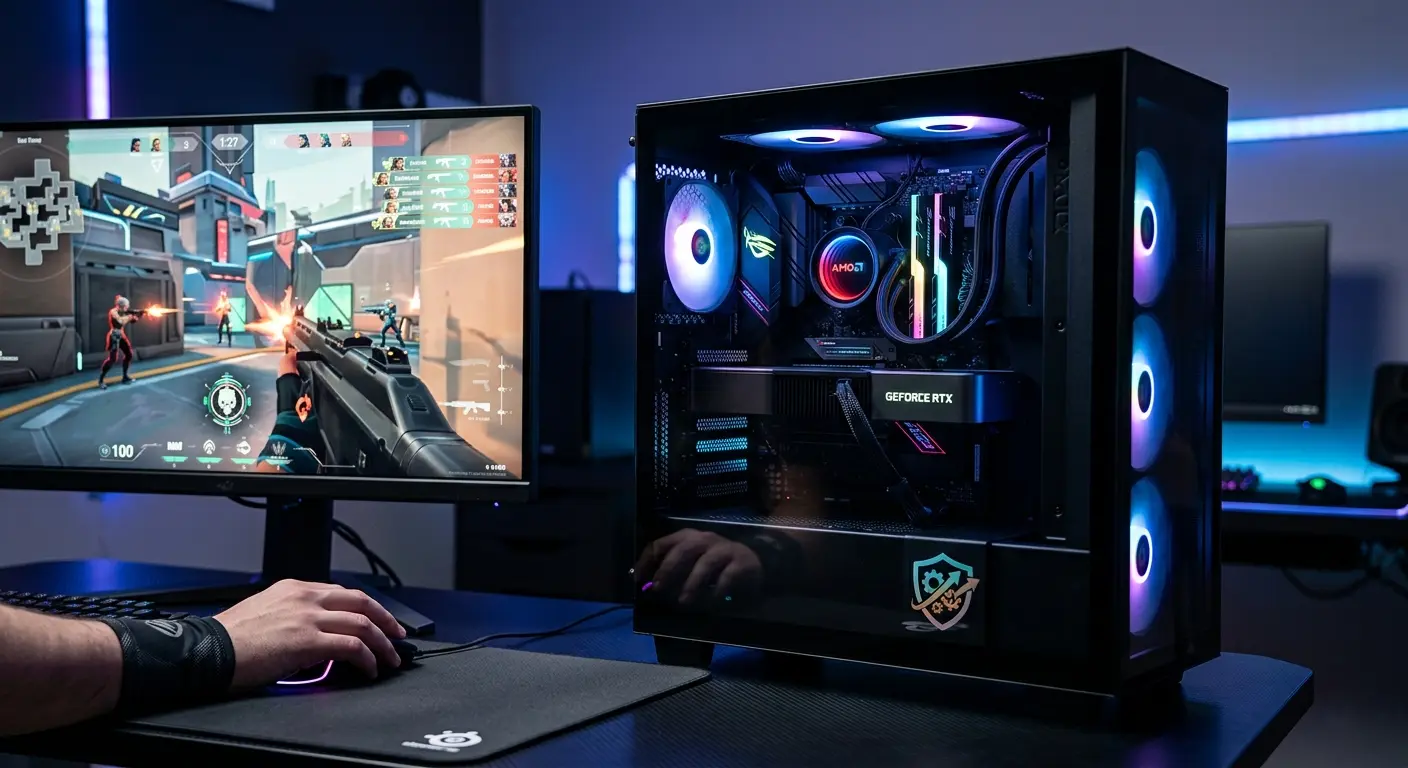
Competitive FPS Performance Fundamentals
Competitive FPS gaming demands different priorities than casual gaming. You need to understand three core concepts that separate competitive optimization from general gaming tweaks. These fundamentals guide every optimization decision in this guide.
First, input delay determines how quickly your actions appear on screen. Every millisecond matters when reacting to enemy movements. Second, frame time consistency matters more than average FPS. Smooth, consistent frame delivery prevents stuttering during crucial moments. Third, one percent low FPS reveals performance bottlenecks that average FPS hides.
Professional players sacrifice visual fidelity for these three performance pillars. They understand that seeing an enemy ten milliseconds earlier wins engagements. They know consistent 300 FPS beats fluctuating 400 FPS. They monitor one percent lows more closely than average FPS. This mindset shift forms the foundation of true competitive optimization.
Input Delay: The Hidden Competitive Advantage
Input delay measures the time between your mouse click and the game responding. Competitive players call this "responsiveness." Lower input delay gives you faster reactions than opponents. Several factors contribute to total system input delay.
Sources of Input Delay
Your mouse sends signals to the computer, the computer processes game logic, the GPU renders the frame, and the display shows it. Each step adds delay. Optimizing every component reduces total delay. A 144Hz monitor with 1ms response time still suffers if game settings create rendering delays.
Windows settings, driver configurations, and in game options all impact input delay. Vsync introduces significant delay by forcing frame synchronization. Triple buffering adds more delay. Borderless windowed mode increases delay compared to fullscreen exclusive mode. Each optimization in this guide targets specific delay sources.
Measuring and Reducing Delay
Use the NVIDIA Reflex Analyzer with compatible hardware or community tools like CapFrameX to measure system latency. Competitive games like Valorant and CS2 now include latency statistics in their settings. Aim for total system latency under 15 milliseconds for optimal competitive performance.
The most effective delay reductions come from disabling Vsync, using fullscreen exclusive mode, enabling NVIDIA Reflex or AMD Anti Lag, and maintaining high, consistent FPS. Higher FPS reduces per frame rendering time, which directly lowers input delay. This relationship makes FPS optimization crucial for competitive play.
Frame Pacing and One Percent Low FPS Analysis
Average FPS tells only part of the performance story. Frame pacing and one percent low FPS reveal crucial details about gaming smoothness. These metrics determine whether your gameplay feels consistently responsive or unpredictably stuttery.
Understanding Frame Pacing
Frame pacing refers to how evenly frames deliver over time. Perfect pacing means each frame takes exactly the same time to render. Poor pacing means some frames render quickly while others stall, creating stuttering. Your eyes perceive uneven pacing as choppiness even with high average FPS.
Monitor frame pacing using MSI Afterburner with frame time graph enabled. Look for a flat, consistent line rather than spikes. Games with good pacing feel smoother at 144 FPS than games with poor pacing at 200 FPS. Competitive optimization prioritizes consistent pacing above maximum FPS.
The Importance of One Percent Lows
One percent low FPS represents the worst one percent of frames during gameplay. This metric reveals performance dips during intense moments. If your average FPS is 240 but one percent lows hit 90, you experience severe stuttering during fights. Competitive players monitor this metric more closely than average FPS.
Improve one percent lows by eliminating background processes, ensuring adequate cooling to prevent thermal throttling, and optimizing RAM performance. Fixing CPU bottlenecks particularly improves one percent lows in competitive titles.
Optimal Competitive Metrics
Average FPS: 1.5x to 2x your refresh rate. One percent lows: Within 70% of average FPS. Frame time variance: Less than 2ms fluctuation. Input delay: Under 15ms total system latency.
Monitoring Tools
MSI Afterburner with RivaTuner. CapFrameX for frame time analysis. NVIDIA FrameView for Reflex latency. In game performance stats in Valorant, CS2, and Warzone.
Performance Targets
144Hz monitors: Minimum 216 FPS average. 240Hz monitors: Minimum 360 FPS average. 360Hz monitors: Minimum 540 FPS average. Adjust based on game engine capabilities.
144Hz vs 240Hz: Competitive Refresh Rate Optimization
Choosing between 144Hz and 240Hz displays depends on your system capabilities and competitive goals. Both offer advantages, but understanding their requirements ensures optimal performance matching.
144Hz Monitor Optimization
144Hz remains the competitive standard for most players. To fully utilize 144Hz, maintain at least 216 FPS average. This provides frame headroom and reduces input delay. Most modern gaming PCs achieve this in competitive titles with proper optimization. The performance requirement is achievable without extreme hardware.
Set your monitor to 144Hz in Windows display settings. Enable ULMB (Ultra Low Motion Blur) if available. Disable any overdrive settings that cause inverse ghosting. Use a DisplayPort cable, not HDMI, for full refresh rate support. Calibrate your monitor for optimal visibility in dark scenes where enemies hide.
240Hz Monitor Requirements
240Hz monitors demand 360+ FPS for optimal performance. This requires high end CPUs and optimized systems. The visual difference from 144Hz to 240Hz is subtle but measurable in reaction times. Professional players use 240Hz or 360Hz monitors for that marginal advantage.
Ensure your system can maintain 360 FPS before investing in 240Hz. Use a high quality DisplayPort 1.4 cable. Enable DyAc or similar motion clarity technologies if available. Remember that higher refresh rates expose frame pacing issues more noticeably, demanding better system optimization.
Refresh Rate Reality Check:
The jump from 60Hz to 144Hz is dramatic. From 144Hz to 240Hz is noticeable but smaller. From 240Hz to 360Hz is subtle. Focus on maintaining consistent FPS above your refresh rate rather than chasing maximum refresh rates your system cannot support consistently.
CPU and GPU Balance for Maximum Competitive FPS
Competitive FPS games lean heavily on CPU performance rather than GPU power. Understanding this balance prevents wasted upgrades and ensures optimal performance per dollar spent. Most players mistakenly prioritize GPU over CPU for competitive gaming.
CPU Priority in Competitive Titles
Games like Valorant, CS2, Rainbow Six Siege, and Overwatch 2 rely on CPU performance for high frame rates. These games use relatively simple graphics but complex game logic, physics, and player calculations. A powerful GPU sits mostly idle while the CPU struggles to prepare frames.
For competitive gaming, prioritize CPU single core performance over multi core count. Most game engines still rely on one or two primary threads. Look for CPUs with high boost clocks and strong IPC (Instructions Per Clock). Modern Intel Core i5 and AMD Ryzen 5 processors often outperform older Core i7 and Ryzen 7 models in competitive titles.
GPU Requirements for Competitive Gaming
Competitive games demand less GPU power than AAA titles. A mid range GPU like the RTX 4060 or RX 7600 delivers maximum performance in most competitive titles at 1080p. Spending more on GPU provides diminishing returns for competitive FPS.
However, ensure your GPU is healthy and performing optimally. Regular GPU health testing identifies thermal throttling, memory issues, or degraded performance over time. A poorly performing GPU still bottlenecks competitive FPS despite lower requirements.
Competitive Gaming Hardware Hierarchy
- CPU: Minimum 6 cores, high single core performance (Intel i5-13600K or Ryzen 5 7600X)
- RAM: 16GB DDR4-3600 or DDR5-6000 with tight timings
- GPU: RTX 4060 / RX 7600 level for 1080p competitive gaming
- Storage: NVMe SSD for faster map loading and asset streaming
- Monitor: 144Hz or 240Hz with fast response times
- Power Supply: Quality 650W+ unit for stable power delivery
Step by Step Competitive FPS Optimization Guide
Follow these optimization steps in order. Complete each section before moving to the next. Document your baseline FPS, then retest after each optimization stage. This methodical approach identifies which tweaks provide the most benefit for your specific system.
Windows Optimization for Maximum FPS
Windows contains numerous settings that hinder gaming performance. These optimizations reduce background overhead and prioritize gaming resources. Complete all steps for maximum impact.
First, enable Game Mode in Windows Settings. This prioritizes CPU and GPU resources for games. Second, adjust Power Options to High Performance or create a custom plan with maximum processor state at 100 percent. Third, disable Game Bar, Game DVR, and background recording features that consume resources.
Next, optimize visual effects. Open System Properties, go to Advanced, Performance Settings, and select Adjust for best performance. This disables animations and visual flourishes. Finally, manage startup applications through Task Manager. Disable everything except essential security software.
GPU Control Panel Optimization
NVIDIA Control Panel and AMD Radeon Software contain crucial performance settings. These system level optimizations apply to all games, complementing in game settings.
For NVIDIA users, set Power Management Mode to Prefer Maximum Performance. Change Texture Filtering Quality to High Performance. Enable Low Latency Mode to Ultra. Set Virtual Reality Pre Rendered Frames to 1. Disable Vertical Sync globally. These settings reduce input delay and prioritize FPS.
AMD users should enable Radeon Anti Lag in Gaming settings. Set Texture Filtering Quality to Performance. Enable Surface Format Optimization. Disable Wait for Vertical Refresh. Create game specific profiles for each competitive title with optimal settings. These adjustments mirror NVIDIA optimizations for competitive play.
BIOS Optimization: XMP and Beyond
BIOS settings dramatically impact gaming performance, especially RAM speed and CPU behavior. Access BIOS by pressing Delete or F2 during system startup. Navigate carefully and only change known settings.
First, enable XMP (Extreme Memory Profile) or DOCP (Direct Overclock Profile). This runs your RAM at its advertised speed rather than default slow speeds. Second, disable unused onboard devices like audio, Wi Fi, or Bluetooth if you use dedicated alternatives. Third, enable Above 4G Decoding and Resizable BAR if supported for GPU performance gains.
Advanced users can enable PBO (Precision Boost Overdrive) for AMD CPUs or adjust CPU multiplier for Intel systems. Disable C states and power saving features that cause performance fluctuations. Ensure your BIOS is updated to the latest stable version for optimal compatibility and performance.
Game Specific Competitive Settings
Each competitive game has unique optimization opportunities. These settings reflect professional player configurations and community tested optimizations.
Valorant Optimization
Set Material Quality, Texture Quality, Detail Quality, and UI Quality to Low. Disable Anti Aliasing, Anisotropic Filtering, Improve Clarity, and VSync. Enable Multithreaded Rendering. Set FPS limit to your monitor's refresh rate or slightly above. These settings maximize FPS while maintaining enemy visibility.
CS2 Optimization
Use Low graphics preset with Texture Filtering at Bilinear. Disable Boost Player Contrast, VSync, and Motion Blur. Set Multicore Rendering to Enabled. Use FidelityFX Super Resolution in Performance mode if needed. These settings follow professional player configurations for maximum competitive advantage.
Warzone Optimization
Set Render Resolution to 100 or lower. Use Normal texture quality with Low texture resolution. Disable Shadow Map Resolution, Screen Space Shadows, and Ambient Occlusion. Enable NVIDIA DLSS or AMD FSR in Performance mode. These balances visual clarity with maximum FPS for fast paced battle royale gameplay.
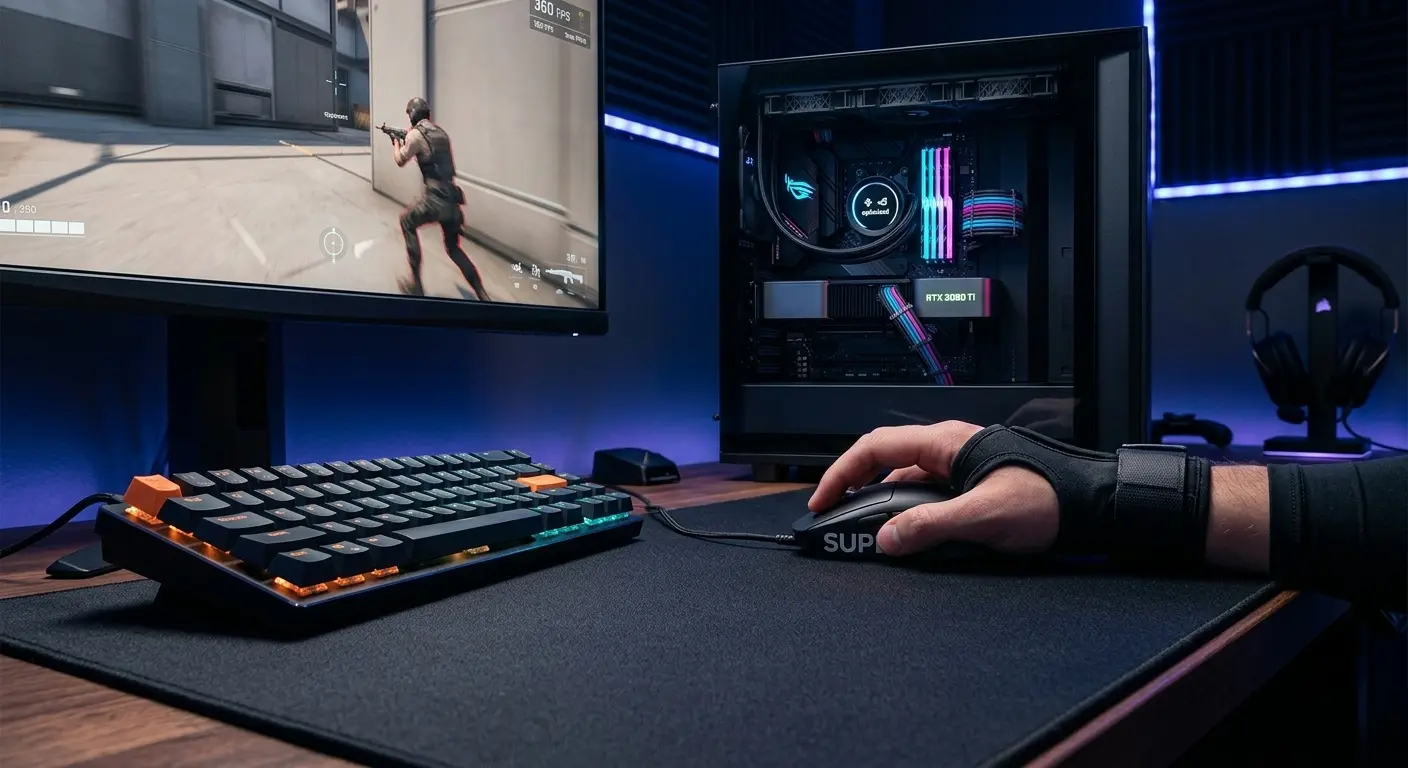
Competitive FPS Hardware Upgrade Strategy
Upgrade decisions should follow performance data, not marketing hype. Measure your current performance, identify bottlenecks, then upgrade strategically. This approach maximizes FPS gains per dollar spent.
Performance Based Upgrade Decisions
Monitor CPU and GPU usage during competitive gameplay. If CPU usage consistently hits 90 percent or higher while GPU usage stays below 80 percent, upgrade your CPU first. If GPU hits 99 percent while CPU has headroom, upgrade your GPU. RAM upgrades help when you see high memory usage or page file activity.
For competitive FPS, CPU upgrades typically provide larger gains than GPU upgrades. Moving from a 4 core to 6 core modern CPU often increases FPS by 30 to 50 percent in titles like Valorant and CS2. GPU upgrades show smaller returns unless moving multiple generations forward.
Priority Upgrades
- CPU for high FPS competitive games
- RAM speed and timings optimization
- High refresh rate monitor
- NVMe SSD for faster loading
- Quality power supply for stability
Diminishing Returns
- GPU beyond mid range for 1080p
- CPU core count above 6-8 cores
- RAM capacity above 32GB for gaming
- Monitor refresh rate above 240Hz
- Extreme storage speeds beyond NVMe
Best Value Upgrades
- CPU: Intel i5 or AMD Ryzen 5 current gen
- GPU: RTX 4060 / RX 7600 level
- RAM: 16GB DDR4-3600 or DDR5-6000
- Monitor: 144Hz or 240Hz IPS panel
- Storage: 1TB NVMe Gen4 SSD
Competitive FPS Performance Checklist
Use this checklist to ensure complete optimization. Check each item after completion. Revisit this list monthly to maintain optimal performance as Windows updates and game patches release.
Windows Optimization
- Game Mode enabled
- High Performance power plan
- Startup applications minimized
- Visual effects optimized for performance
- Latest stable GPU drivers installed
Hardware Optimization
- XMP/DOCP enabled in BIOS
- Monitor refresh rate set correctly
- CPU and GPU temperatures optimal
- RAM running at advertised speed
- DisplayPort cable used for high refresh
Game Optimization
- Competitive graphics settings applied
- VSync disabled in all games
- Frame rate limiters configured
- Fullscreen exclusive mode enabled
- Mouse polling rate maximized
- In game performance stats enabled
Mastering Competitive FPS Optimization
Learning how to optimize gaming PC for competitive FPS provides tangible advantages in every match. These optimizations separate casual players from serious competitors. The cumulative effect of proper Windows settings, GPU configurations, BIOS tweaks, and game specific optimizations creates a consistently high performance gaming environment.
Remember that competitive optimization prioritizes consistency over maximum numbers. Smooth 300 FPS beats fluctuating 400 FPS. Low input delay matters more than perfect visuals. One percent low FPS reveals more about real gameplay experience than average FPS ever can. Professional players understand these principles and optimize accordingly.
Implement these optimizations systematically, testing after each change. Document your performance improvements. Focus on bottlenecks specific to your hardware configuration. Regular maintenance ensures these optimizations remain effective through Windows updates and game patches. Competitive advantage comes from both initial optimization and ongoing performance management.
Final Competitive Optimization Principles
- Measure performance before and after every change
- Prioritize input delay reduction above visual quality
- Maintain consistent frame pacing, not just high averages
- Upgrade based on actual bottleneck data, not speculation
- Re optimize monthly as software and games update
- Benchmark against professional player settings for your main games
- Remember that optimization is an ongoing process, not one time fix
Your journey to mastering how to optimize gaming PC for competitive FPS begins with implementing these proven strategies. Each optimization builds upon the last, creating a system finely tuned for competitive performance. Track your improvement, refine your approach, and enjoy the competitive advantages that proper optimization delivers. The difference between victory and defeat often comes down to these performance optimizations.
Frequently Asked Questions
How much FPS increase can I expect from optimizing my gaming PC?+
Proper optimization typically increases FPS by 30 to 70 percent depending on your starting point. An unoptimized system with background bloat can gain 50 percent or more. Well maintained systems still see 20 to 30 percent improvements from advanced tweaks. The biggest gains come from fixing CPU bottlenecks, enabling XMP, and optimizing Windows. Track your FPS before and after each change using in game benchmarks or tools like Fraps.
Which game settings affect competitive FPS the most?+
Shadows, ambient occlusion, anti aliasing, and post processing effects impact FPS the most. In competitive games, always set these to Low or Off. Texture quality matters less for FPS but affects VRAM usage. Render scale or resolution percentage is crucial, keep it at 100 percent or lower. Model detail and effects can sometimes impact visibility, so find the balance that gives you both performance and clear enemy outlines.
Should I upgrade my CPU or GPU first for competitive FPS?+
Upgrade your CPU first for competitive FPS games. Games like Valorant, CS2, and Rainbow Six Siege rely heavily on CPU performance for high frame rates. A modern CPU with strong single core performance delivers more FPS in competitive titles. However, always check your bottleneck situation first using a bottleneck calculator. If your GPU is already at 100 percent usage, upgrade that instead.
How do I check if my RAM is running at its advertised speed?+
Open Task Manager, go to Performance tab, then click Memory. Look at the Speed value. If it shows half of your RAM's advertised speed (like 1600 instead of 3200), you need to enable XMP in BIOS. Alternatively, use CPU Z and check the Memory tab. The DRAM Frequency displayed there is the actual speed. Multiply it by two for the effective speed. Enter BIOS and enable XMP/DOCP if speeds don't match.
Does Windows 10 or Windows 11 give better gaming performance?+
Windows 10 currently gives slightly better gaming performance for competitive FPS, typically 2 to 5 percent higher frame rates. Windows 11 has improved over time but still carries more background overhead. For maximum competitive performance, stay with Windows 10. If you use Windows 11, disable all visual effects, virtualization based security, and unnecessary services to minimize performance impact.
How often should I update my GPU drivers for optimal FPS?+
Update GPU drivers every month or when new competitive games release. NVIDIA and AMD release Game Ready drivers optimized for specific titles. However, don't update immediately, wait a few days to check community feedback. Sometimes new drivers introduce performance issues. Use DDU (Display Driver Uninstaller) to clean install drivers. Keep a stable driver version that works well for your main games.
Can overclocking really help competitive FPS gaming?+
Yes, overclocking provides measurable FPS gains in competitive gaming. A stable CPU overclock can increase FPS by 5 to 15 percent in CPU bound games. GPU overclocking adds another 3 to 8 percent. RAM overclocking with tightened timings improves one percent low FPS significantly. Always stress test overclocks and monitor temperatures. Start with moderate overclocks rather than pushing to instability limits.